Activating Your Tags: One Tag or a Whole Pack
A new tag does nothing until it's activated to your account. You can activate tags one at a time as you put them on equipment, or a whole pack at once.
Before You Start
Log in to TagTuf on your phone or computer as the account owner or a user with Full Access. Limited Access users can't activate tags.
Have the tags in front of you. Each one has a QR code and a 12-digit number printed on it.
Have the tags in front of you. Each one has a QR code and a 12-digit number printed on it.
Activate One Tag
1. Scan the tag's QR code with your phone's camera and tap the link. Or, on the TagTuf Home page, type the 12-digit number into the Scan Barcode or Enter 12-Digit ID box and tap Submit.
2. The Confirm Activation page opens. Leave the choice on Activate Just This One Tag.
3. Tap Activate.
The tag's edit page opens next, so you can give it a name (for example, "Dehumidifier DH-01") and pick its Type, Model and other filters right away.
2. The Confirm Activation page opens. Leave the choice on Activate Just This One Tag.
3. Tap Activate.
The tag's edit page opens next, so you can give it a name (for example, "Dehumidifier DH-01") and pick its Type, Model and other filters right away.
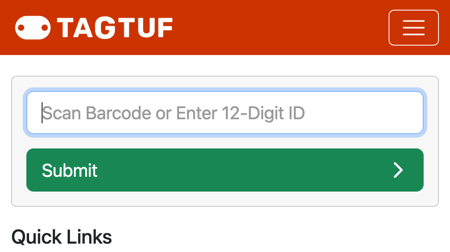
Type the 12-digit number on the Home page, or scan the QR code with your phone's camera
Activate a Whole Pack at Once
If the tag came in a pack, the Confirm Activation page also offers Activate All Remaining Tags In The Pack, with the number of tags it will activate.
1. Scan or enter any tag from the pack.
2. Choose Activate All Remaining Tags In The Pack.
3. Tap Activate.
Every tag in that pack that isn't activated yet is activated, and you land on Tag Manager with your tags listed. Name them as you put them on equipment, or change many at once in Tag Manager.
1. Scan or enter any tag from the pack.
2. Choose Activate All Remaining Tags In The Pack.
3. Tap Activate.
Every tag in that pack that isn't activated yet is activated, and you land on Tag Manager with your tags listed. Name them as you put them on equipment, or change many at once in Tag Manager.
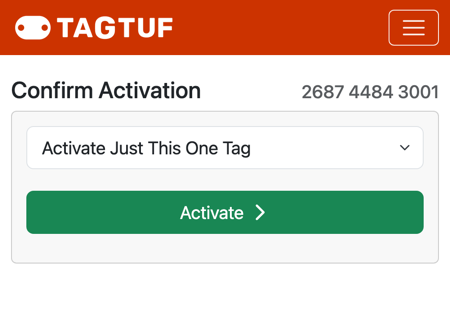
Confirm Activation: activate just this tag, or every remaining tag in the pack
What It Does to Your Bill
Before you confirm, the Confirm Activation page shows your current rebill amount and what it will be after activating, so there are no surprises. Your plan covers your first 50 tags; each tag after that adds $0.25 a month. Text message (SMS) notifications are billed separately.
If a Tag Says It Isn't Activated Yet
If you scan a new tag while you're not logged in, TagTuf tells you the tag hasn't been activated and asks you to log in or create an account. Log in, then scan the tag again (or enter its number on the Home page).
Comments
No Comments Yet