Adding Notes, Photos and GPS to a Scan
Every scan saves who scanned it and when. You can add notes and files, and the phone's location is added automatically when the phone allows it.
Notes
Type in the Notes box on the scan form before you tap Submit. Notes are optional, but a few words help later: what was wrong, what you did, where you left it.
Photos, Videos and PDFs
Tap Choose Files under Notes to add photos, videos or PDFs from the phone. You can add several at once, or take a photo right then. They're saved with that scan and show in the tag's history.
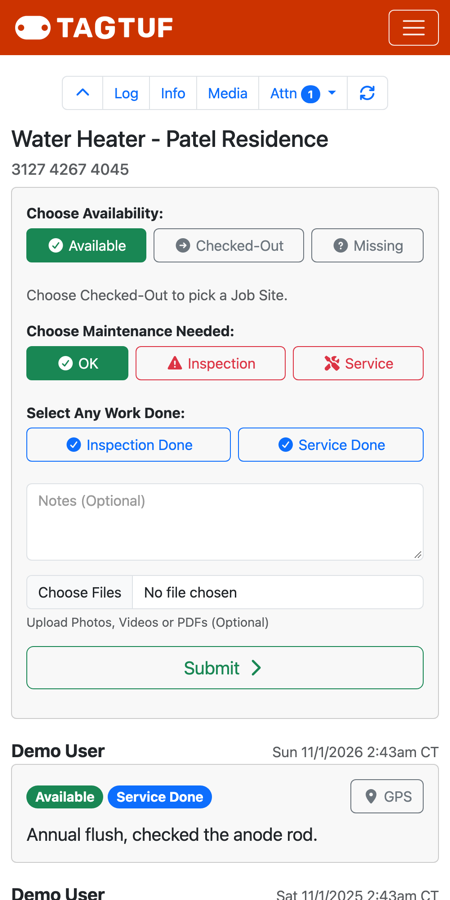
Notes and Upload Photos, Videos or PDFs on the scan form
GPS
The scan form asks the phone for its location and saves it with the scan. The first time, the phone's browser asks for permission; allow it. If location is off or denied, the scan is still saved, just without GPS.
In the history, the GPS button on an entry opens the location on a map. It's where the phone was when the tag was scanned, not live tracking of the equipment.
In the history, the GPS button on an entry opens the location on a map. It's where the phone was when the tag was scanned, not live tracking of the equipment.
Where It Shows
Everything shows in the tag's history below the scan form, newest first: who scanned it, the date and time, the badges for what changed, the job site, the note and the files.
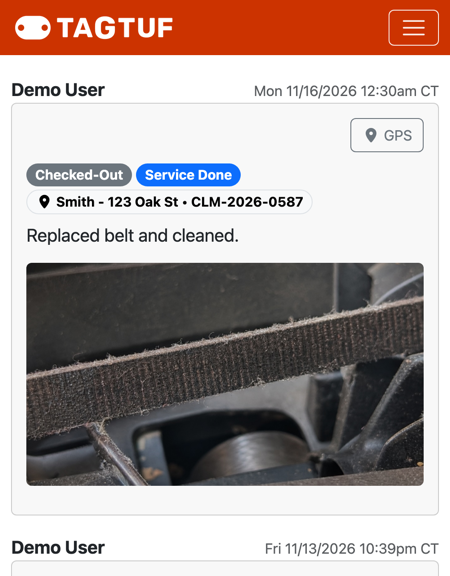
A history entry with a note, a photo and the GPS button
Comments
No Comments Yet