Adding Photos, Files and Links to Tags and Models
Put a photo, a manual or a how-to video link where the crew will see it: on one tag, or on a Model, Type or Group so every tag in it shows the same files.
On One Tag
1. Go to Admin > Tag Manager.
2. On the tag, tap Add Files to upload photos, videos or PDFs, or Add Links to add a web address (a manual, a parts page, a video).
Once a tag has files, the button shows the count (Files 1).
2. On the tag, tap Add Files to upload photos, videos or PDFs, or Add Links to add a web address (a manual, a parts page, a video).
Once a tag has files, the button shows the count (Files 1).
On a Model, Type or Group
Add it once, and every tag with that Model, Type or Group shows it.
1. Open Filters > Models (or Types or Groups).
2. On the model, tap Add Files or Add Links.
3. Tap Add New File and upload it.
This is the easy way to give every unit of a model its photo and its manual.
1. Open Filters > Models (or Types or Groups).
2. On the model, tap Add Files or Add Links.
3. Tap Add New File and upload it.
This is the easy way to give every unit of a model its photo and its manual.
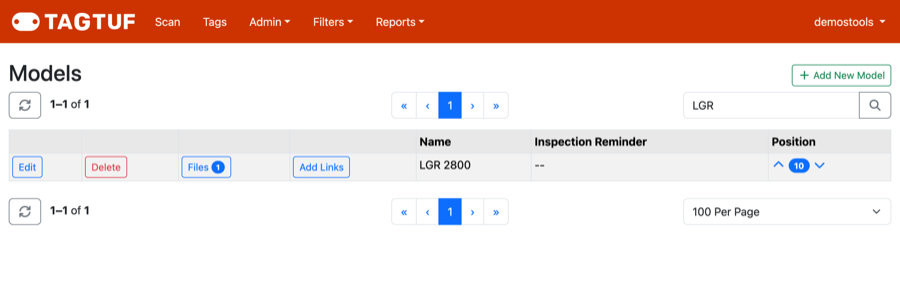
Filters > Models: Files and Add Links on each model
Which Photo Shows in Lists
The Tags list and Tag Manager show one photo per tag: the tag's own photo if it has one, otherwise its Model's, then its Group's, then its Type's.
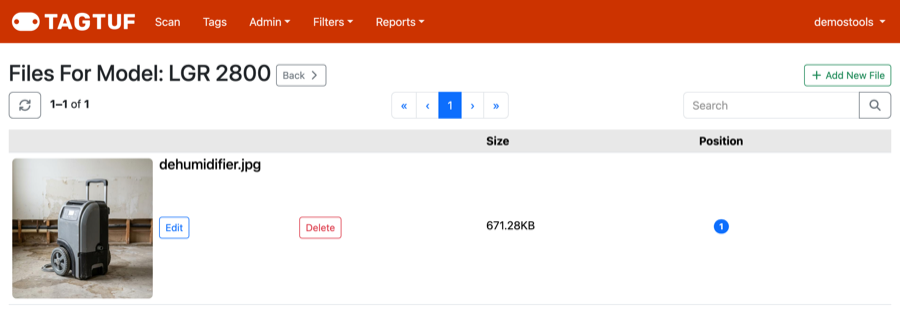
A model's files: this photo shows on every tag with that model
Where People See Them
After entering their PIN, anyone scanning the tag can tap Media at the top of the tag page to see its photos, files and links, including the ones from its Model, Type and Group.
Photos taken during a scan are different: they're saved with that scan and show in the tag's history.
Photos taken during a scan are different: they're saved with that scan and show in the tag's history.
Comments
No Comments Yet