Adding Users and PINs (Full vs Limited Access)
Give each person who scans tags their own user and PIN, so every scan is saved under their name. Crews who only scan get Limited Access; office staff who manage tags get Full Access.
Who Can Add Users
The account owner manages users. Full Access users can do almost everything else, but not Users, Account Settings or Billing Info.
Add a User
1. Go to Admin > Users (or tap Manage Users on the Home page).
2. Tap Add New User.
3. Under User Info, enter the first name and email. Leave Username blank and TagTuf creates one. Add a phone number if they'll get text messages.
4. Under Security PIN, enter a 6-digit PIN, or leave it blank and TagTuf picks a random one.
5. Under Access Level & Status, choose Limited Access or Full Access.
6. Optionally pick their Team.
7. Tap Save.
2. Tap Add New User.
3. Under User Info, enter the first name and email. Leave Username blank and TagTuf creates one. Add a phone number if they'll get text messages.
4. Under Security PIN, enter a 6-digit PIN, or leave it blank and TagTuf picks a random one.
5. Under Access Level & Status, choose Limited Access or Full Access.
6. Optionally pick their Team.
7. Tap Save.
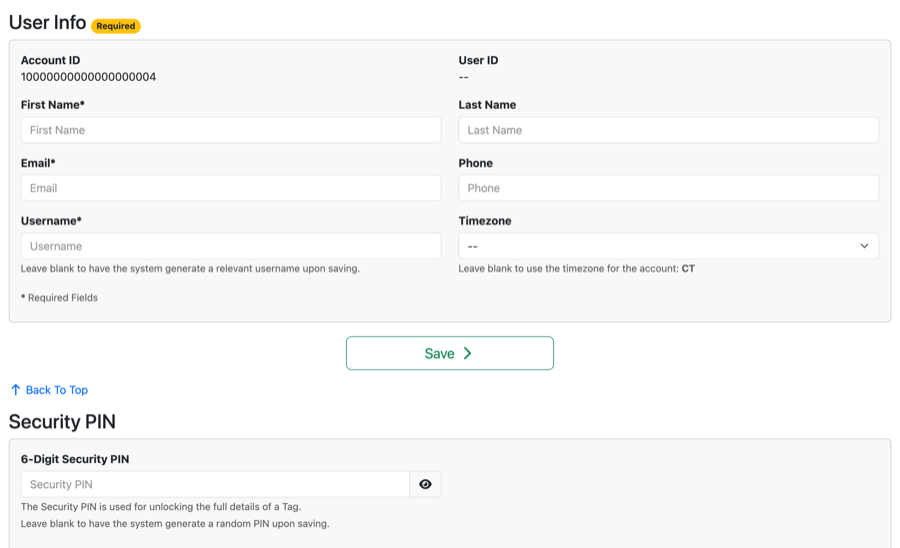
User Info and the 6-digit Security PIN
Full Access or Limited Access
Limited Access is for crews in the field. They scan tags with their PIN and log what's happening, and they can look tags up in the Tags list.
Full Access is for office staff and managers. It includes everything in the Admin Panel except Account Settings, Billing Info and Users: activating tags, Tag Manager, job sites, filters and reports.
Full Access is for office staff and managers. It includes everything in the Admin Panel except Account Settings, Billing Info and Users: activating tags, Tag Manager, job sites, filters and reports.
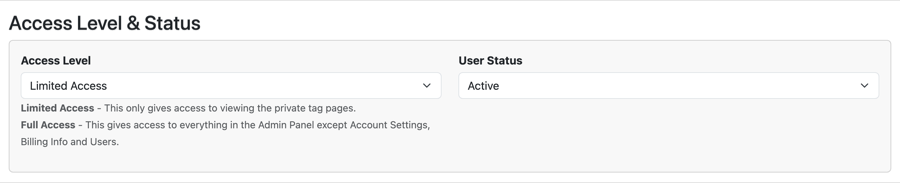
Access Level: Limited Access for scanning, Full Access for managing tags
Sending Them Their Login
Under Send User Login Info, check Send Email To User With Login Information Upon Saving, or Send Text Message To User With Security PIN Upon Saving (needs a phone number), then save. A field user mostly needs their PIN: they scan a tag, enter the PIN, and they're in.
Notifications
Each user's Notifications section controls which emails and text messages they get: check-outs and returns, missing items, inspection and service needed or done, inspection reminders, and operations reports. Each one can be for all tags or only their team's tags.
Comments
No Comments Yet