Checking Equipment Out, In, or Marking It Missing
Every scan starts with Choose Availability: Available, Checked-Out or Missing. Here's what each one means and what it records.
Checked-Out: It's Out on a Job
1. Scan the tag and enter your PIN.
2. Tap Checked-Out.
3. The Job Site picker opens. Pick the job (the closest ones are at the top, using your phone's location), or tap Add New Job Site. Job Site is optional; choose No Job Site if it doesn't apply.
4. Tap Submit.
The tag now shows as checked out to that job site, and it counts toward that site's equipment days until it comes back.
2. Tap Checked-Out.
3. The Job Site picker opens. Pick the job (the closest ones are at the top, using your phone's location), or tap Add New Job Site. Job Site is optional; choose No Job Site if it doesn't apply.
4. Tap Submit.
The tag now shows as checked out to that job site, and it counts toward that site's equipment days until it comes back.
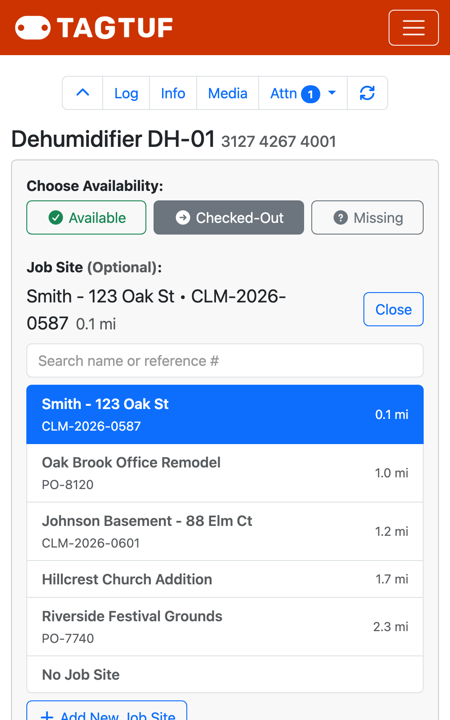
Checked-Out opens the Job Site picker, closest sites first
Available: It's Back
When equipment comes back to the shop or the yard, scan it, tap Available and tap Submit. That ends its time at the job site.
While Available is selected, the form shows "Choose Checked-Out to pick a Job Site" where the picker would be.
While Available is selected, the form shows "Choose Checked-Out to pick a Job Site" where the picker would be.
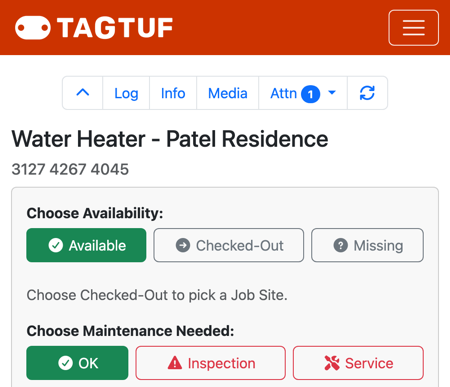
Available: the job site picker only appears for Checked-Out
Missing: You Can't Find It
If a piece of equipment isn't where it should be:
1. Open its tag: scan it if it's in hand, or find it on the Tags list.
2. Tap Missing.
3. Add a note about where it was last seen.
4. Tap Submit.
The tag keeps the job site it went missing from, and it shows up under Missing on the Tags list and in the Attn menu, so it doesn't get forgotten. When it turns up, scan it as Available or Checked-Out again.
1. Open its tag: scan it if it's in hand, or find it on the Tags list.
2. Tap Missing.
3. Add a note about where it was last seen.
4. Tap Submit.
The tag keeps the job site it went missing from, and it shows up under Missing on the Tags list and in the Attn menu, so it doesn't get forgotten. When it turns up, scan it as Available or Checked-Out again.
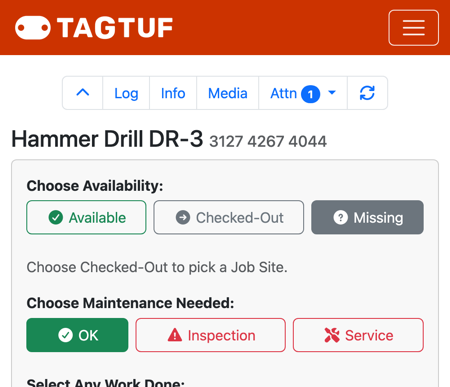
A tag marked Missing
Who Hears About It
Each scan can send an email or text to users who have turned on those notifications: check-outs and returns, and missing items. Each user picks theirs under Admin > Users > Notifications, for all tags or just their team's.
Comments
No Comments Yet