Checking a Crew's Equipment Out to a Job at Once
Loading a truck for a job? Check the whole load out to the job site in one step from Tag Manager, instead of scanning every unit.
Check Out a Group of Tags
1. Go to Admin > Tag Manager.
2. Narrow the list (for example Available, or a Group or Type) and check the tags going out. Check/Uncheck All selects every tag on the page.
3. Under Do the following to checked, pick the job site under Check Out To.
4. Tap Submit.
2. Narrow the list (for example Available, or a Group or Type) and check the tags going out. Check/Uncheck All selects every tag on the page.
3. Under Do the following to checked, pick the job site under Check Out To.
4. Tap Submit.
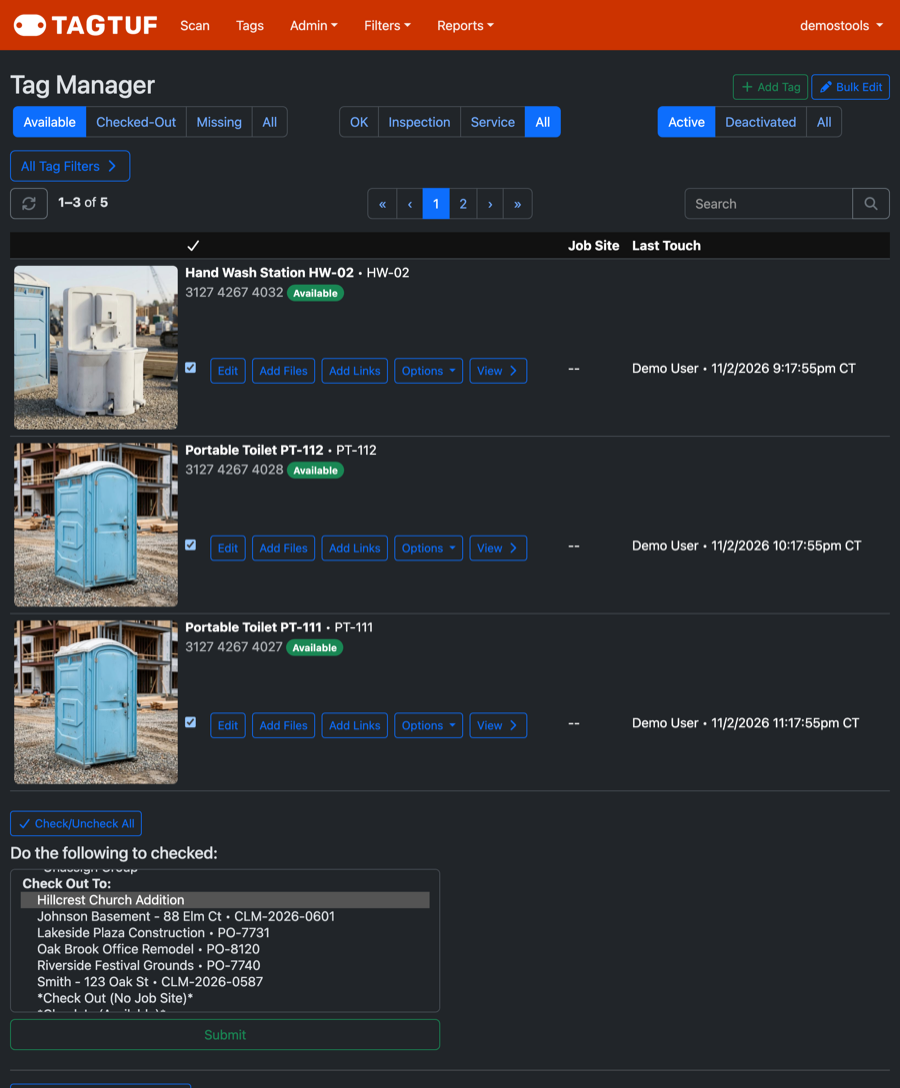
Checking available units out to a job site from Tag Manager
Bring Them Back
Do the same with Check In (Available) when the load comes back, or Check Out (No Job Site) for equipment that's out but not at a job site.
What Gets Recorded
Each tag gets a normal entry in its history under your name, so its job site and equipment days are right, just as if it had been scanned. Because nobody scanned the tags, these entries have no GPS, and they don't send scan notifications.
Crews can still scan units at the site as they set them up, which adds the GPS.
Crews can still scan units at the site as they set them up, which adds the GPS.
Comments
No Comments Yet