Finding Tags: The Tags List and Its Filters
The Tags list shows every active tag with where it is, who touched it last and what it needs. Narrow it down with the buttons at the top or All Tag Filters.
Open the List
Tap Tags in the top menu. Full Access and Limited Access users both have it.
Quick Filters
The two button rows at the top filter by:
Availability: Available, Checked-Out, Missing or All.
Maintenance: OK, Inspection, Service or All.
If you're on a team, a third row lets you show just your team's tags. The rows combine: Checked-Out and Service shows tags that are out on a job and need service.
Availability: Available, Checked-Out, Missing or All.
Maintenance: OK, Inspection, Service or All.
If you're on a team, a third row lets you show just your team's tags. The rows combine: Checked-Out and Service shows tags that are out on a job and need service.
All Tag Filters
Tap All Tag Filters for more: Type, Model, Status, Team, Zone, Group, Job Site, Last User, Tag ID and Custom ID. Pick what you need and tap Show. The Search box finds tags by name or Custom ID (part of it is enough), or by the full 12-digit tag number.
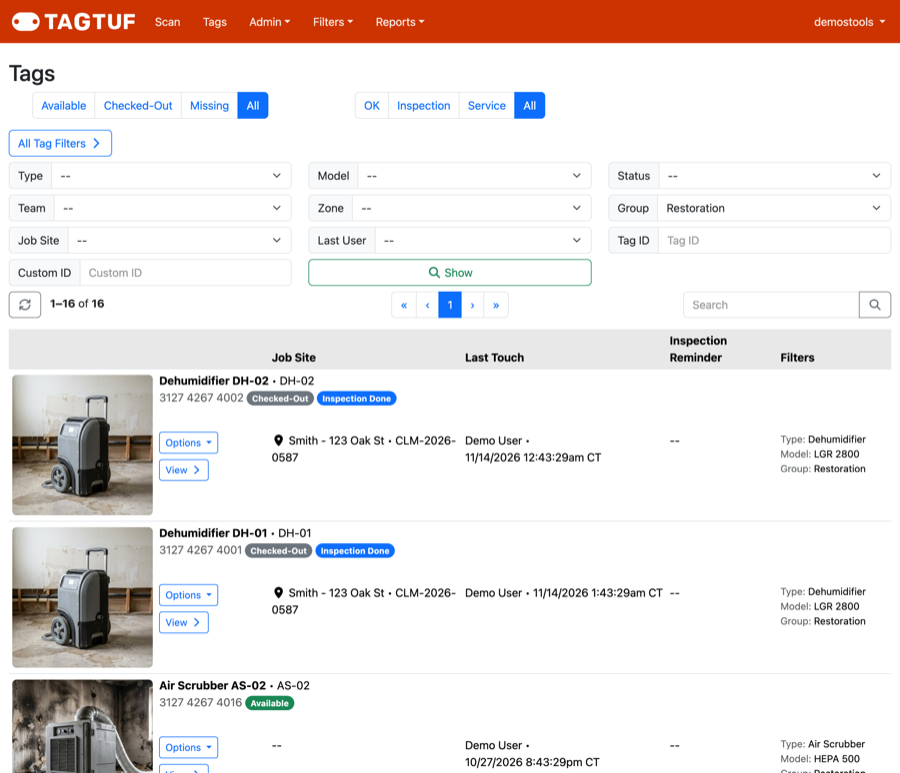
The Tags list with All Tag Filters open, showing one Group
What Each Row Shows
The photo, name, Custom ID and tag number, with badges for its availability and anything it needs.
Job Site: where it's checked out to (or where it went missing).
Last Touch: who scanned it last and when.
Inspection Reminder: its reminder schedule, if it has one.
Filters: its Type, Model, Group and the rest.
Tap View to open the tag's page and history.
Job Site: where it's checked out to (or where it went missing).
Last Touch: who scanned it last and when.
Inspection Reminder: its reminder schedule, if it has one.
Filters: its Type, Model, Group and the rest.
Tap View to open the tag's page and history.
Comments
No Comments Yet