How Scanning Works: QR Code and PIN, No App
Scanning a TagTuf tag takes a phone camera and a 6-digit PIN. There's no app to install, so anyone on your crew can scan with the phone they already carry.
1. Scan the QR Code
Open the phone's camera, point it at the tag's QR code and tap the link that appears. The tag's public page opens in the phone's browser.
Anyone who scans the tag sees this page: the tag's name and number, your company's contact information (so a found piece of equipment can find its way home) and, if you turn it on, when it was last serviced. The tag's history and the scan form stay locked.
Anyone who scans the tag sees this page: the tag's name and number, your company's contact information (so a found piece of equipment can find its way home) and, if you turn it on, when it was last serviced. The tag's history and the scan form stay locked.
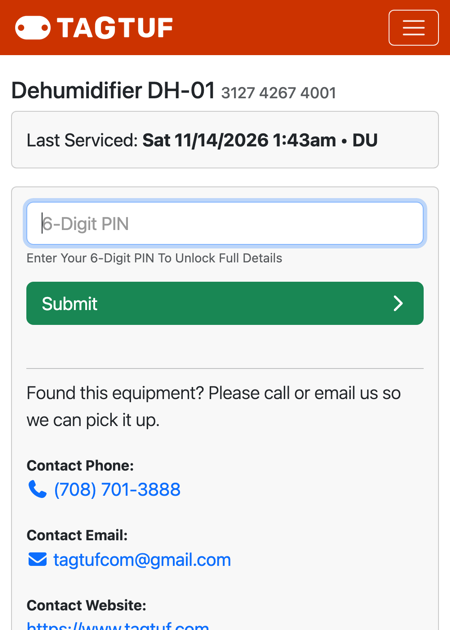
The public tag page: contact information and the PIN box
2. Enter Your PIN
Type your 6-digit Security PIN and tap Submit. Each user has their own PIN; the account owner sets them up under Admin > Users.
The PIN tells TagTuf who is scanning, so every entry is saved under the right name.
The PIN tells TagTuf who is scanning, so every entry is saved under the right name.
3. Log What's Happening
The scan form opens with the tag's current status already selected. Change what's true now (checked out to a job, available, needs service), add a note or photo if it helps, and tap Submit.
Every scan saves who scanned it, the date and time, and the phone's GPS location if the phone allows it. The entry shows up in the tag's history right below the form.
Every scan saves who scanned it, the date and time, and the phone's GPS location if the phone allows it. The entry shows up in the tag's history right below the form.
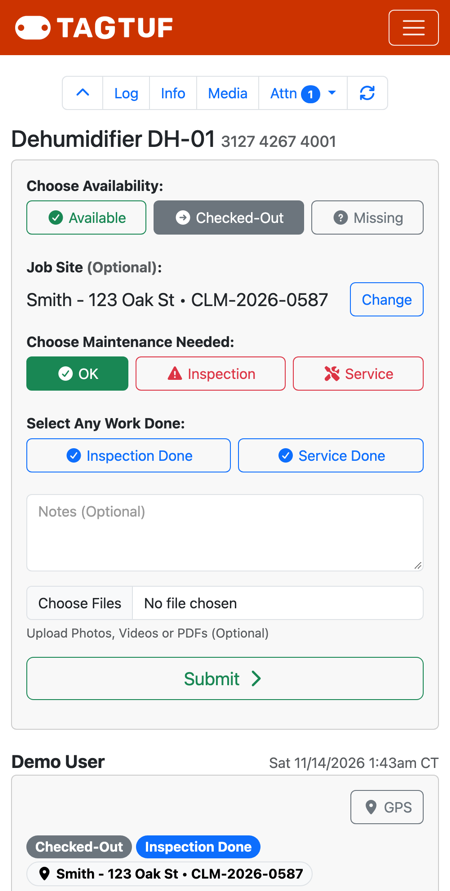
The scan form after the PIN: availability, job site, maintenance, notes and photos
Scanning More Tags
After you enter your PIN, the phone stays unlocked for a while (up to about a day), so scanning the next tags goes straight to the scan form. After that, or if the browser was closed, TagTuf asks for the PIN again.
Comments
No Comments Yet