Job Sites: Creating, Picking at a Scan, and Closing
A job site is wherever equipment goes out to: a claim, a project, an event. Checking equipment out to a job site shows what's there and counts its equipment days.
Add a Job Site
In the admin: Admin > Job Sites > Add New Job Site. Enter a name (for example "Smith - 123 Oak St") and, if you use one, a Reference # such as a claim or PO number.
From the scan form: tap Checked-Out, then Add New Job Site. A site added this way saves the scan's GPS as its location, so it shows at the top of the list for the next scans there. Sites added in the admin have no location yet; the picker lists them after nearby sites, by most recent use.
From the scan form: tap Checked-Out, then Add New Job Site. A site added this way saves the scan's GPS as its location, so it shows at the top of the list for the next scans there. Sites added in the admin have no location yet; the picker lists them after nearby sites, by most recent use.
Pick It When You Check Out
On the scan form, tap Checked-Out and the Job Site picker opens, closest sites first. Tap the site, or type part of the name or reference number to search. Job Site is optional: No Job Site works too.
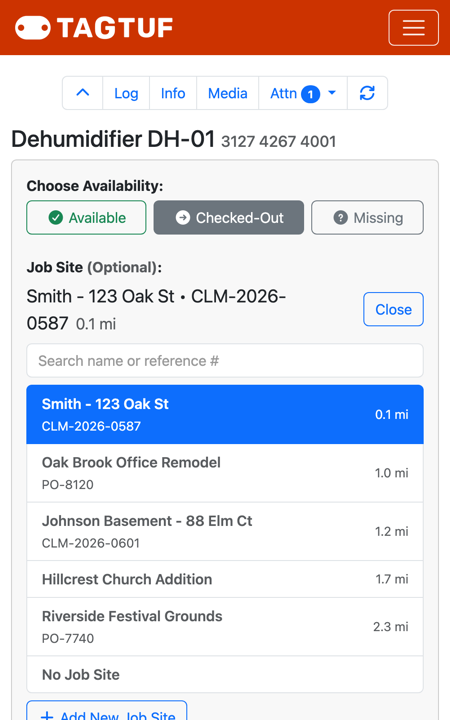
The Job Site picker on the scan form
The Job Sites List
Admin > Job Sites lists your sites with their Reference #, status, how much equipment is out there, and the last activity. Filter by Open or Closed, Equipment Out or Nothing Out, and Ready to Close.
Tap Edit to rename a site, change its reference number, see the list of equipment checked out there, and set up client sharing.
Tap Edit to rename a site, change its reference number, see the list of equipment checked out there, and set up client sharing.
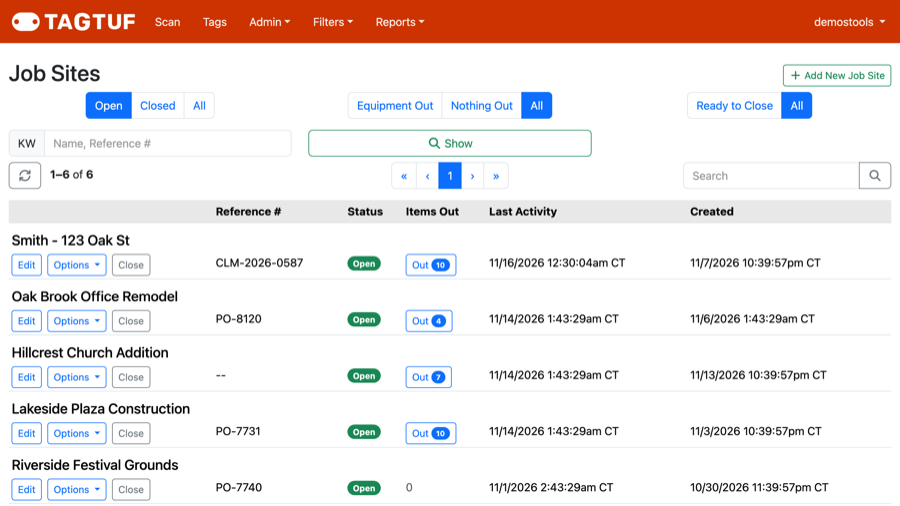
Admin > Job Sites
Close, Reopen or Merge
Close: tap Close when the job is done. If anything is still checked out there, TagTuf lists it and asks you to check it in or mark it missing first.
Ready to Close: open sites with nothing checked out and no activity for 7 days. Check it now and then to close finished jobs.
Reopen: closed sites are under Closed; tap Reopen.
Merge: if the same site was added twice, use Options > Merge Into Another Job Site on the duplicate.
Options also has Equipment Days, Tracking Log, View Client Report and Send Final Report for that site.
Ready to Close: open sites with nothing checked out and no activity for 7 days. Check it now and then to close finished jobs.
Reopen: closed sites are under Closed; tap Reopen.
Merge: if the same site was added twice, use Options > Merge Into Another Job Site on the duplicate.
Options also has Equipment Days, Tracking Log, View Client Report and Send Final Report for that site.
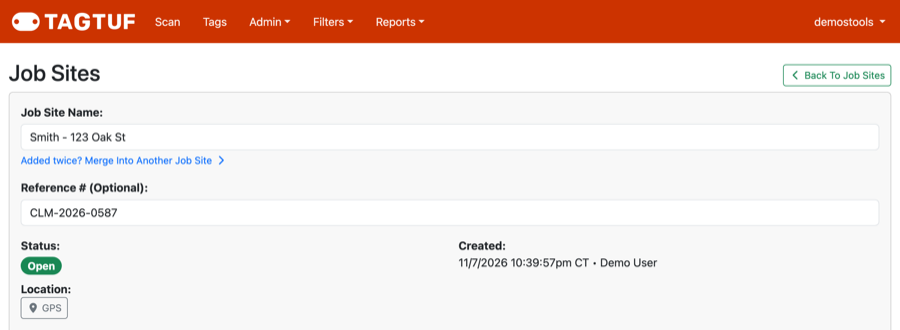
A job site's page: name, reference number, status and location
Comments
No Comments Yet