Setting Up Inspection Reminders
Inspection reminders flag equipment for inspection on a schedule, so monthly harness checks or yearly backflow tests don't depend on someone's memory.
Where to Set the Schedule
Usually on a Type, Model or Group, so every tag in it shares one schedule: Filters > Types (or Models or Groups), tap Edit, and use Log Inspection Reminder.
For one tag, use Inspection Reminder on its edit page in Admin > Tag Manager.
If a tag has more than one, TagTuf uses the tag's own schedule first, then its Model's, then its Group's, then its Type's.
For one tag, use Inspection Reminder on its edit page in Admin > Tag Manager.
If a tag has more than one, TagTuf uses the tag's own schedule first, then its Model's, then its Group's, then its Type's.
Set It Up
1. Under Log Inspection Reminder, pick how often: Weekly, Monthly, Quarterly, Semi-Annually or Yearly. Quarterly, semi-annual and yearly schedules let you pick which months.
2. Pick the day: the day of the week for weekly, or the day of the month.
3. Pick the Time of Day.
4. Tap Save.
2. Pick the day: the day of the week for weekly, or the day of the month.
3. Pick the Time of Day.
4. Tap Save.
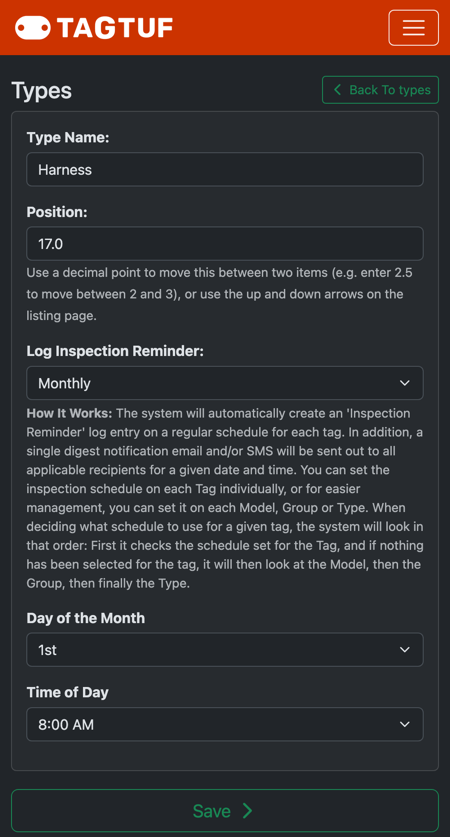
A monthly reminder on the 1st at 8:00 AM, set on a Type
What Happens on the Day
At the scheduled time, each tag on the schedule gets an Inspection Reminder entry in its history and is flagged Inspection (red). It shows under Inspection on the Tags list and in the Attn menu.
Users who turned on "Notify Upon Inspection Reminder" get one summary email or text for that date and time, not one per tag.
Users who turned on "Notify Upon Inspection Reminder" get one summary email or text for that date and time, not one per tag.
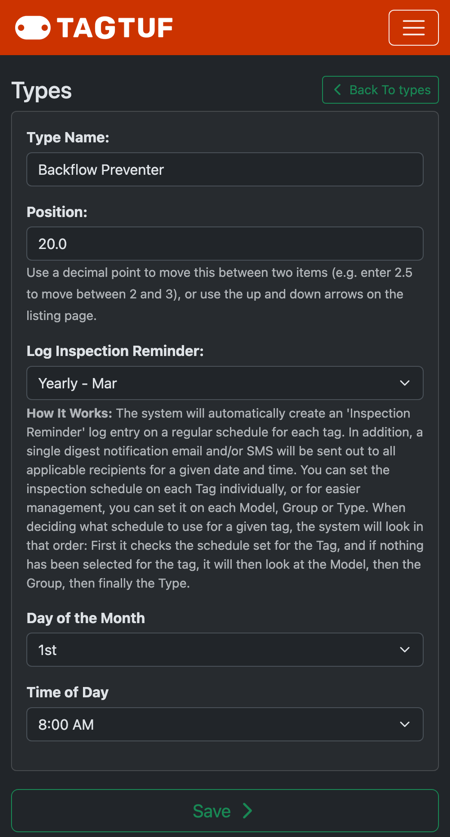
A yearly reminder, for example for annual backflow tests
Clearing It
Do the inspection, then scan the tag: set Choose Maintenance Needed to OK and tap Inspection Done. The red flag clears, and the schedule stays the same for next time.
Comments
No Comments Yet