Sharing a Job Site With Your Client
Give a general contractor, adjuster, event manager or homeowner a link to one job site's report. They see what's on site and the service record, with no login.
Turn On Sharing
1. Go to Admin > Job Sites and tap Edit on the job site.
2. Under Client Reports, tap Turn On Sharing.
3. Tap Copy and send the Share Link to your client, or tap Open to see what they'll see.
2. Under Client Reports, tap Turn On Sharing.
3. Tap Copy and send the Share Link to your client, or tap Open to see what they'll see.
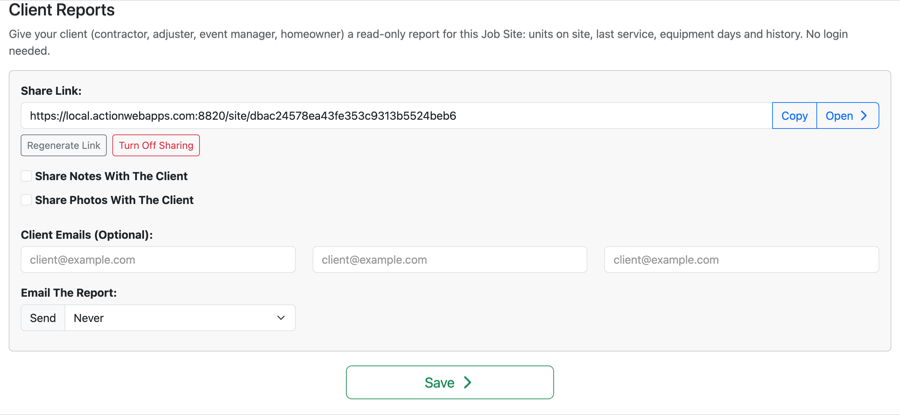
Client Reports on a job site, with sharing on
What Your Client Sees
Units on site: each unit, when it was last serviced (with the initials of who did it), and when it's due next or if it's overdue. "Verified on site" means the service scan's GPS was within 500 feet of the job site.
Equipment days for the site, and the history of what happened while each unit was there.
Notes and photos only show if you check Share Notes With The Client or Share Photos With The Client.
Equipment days for the site, and the history of what happened while each unit was there.
Notes and photos only show if you check Share Notes With The Client or Share Photos With The Client.
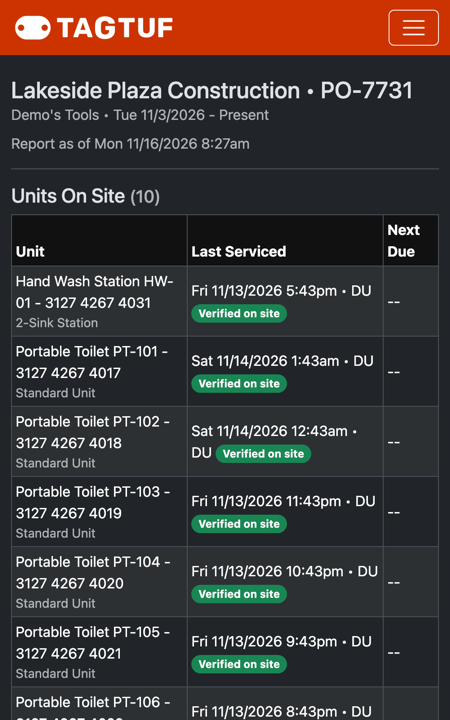
The client's report page
Change or Stop Sharing
Regenerate Link makes a new link; the old one stops working. Use it if the link went to the wrong person.
Turn Off Sharing stops the link and any scheduled report emails for that site.
Turn Off Sharing stops the link and any scheduled report emails for that site.
Emailing It Automatically
With sharing on, you can also add up to three client emails and send the report on a schedule, plus a final report when the job is done.
Comments
No Comments Yet