The Equipment Days Report
Equipment Days shows how long each unit was at a job site, with totals per model, ready to export for an invoice.
Open the Report
Go to Reports > Equipment Days, or on the Job Sites list use a site's Options > Equipment Days.
1. Pick the Job Site.
2. Pick a month, or set From and To dates.
3. Tap Show.
1. Pick the Job Site.
2. Pick a month, or set From and To dates.
3. Tap Show.
What It Shows
Total by Model: the days for each model, and the total.
Then one row per stay: the tag, its model and group, when it was checked out, when it was checked in (or Still Out), and its days. A unit that went to the same site twice has two rows.
Then one row per stay: the tag, its model and group, when it was checked out, when it was checked in (or Still Out), and its days. A unit that went to the same site twice has two rows.
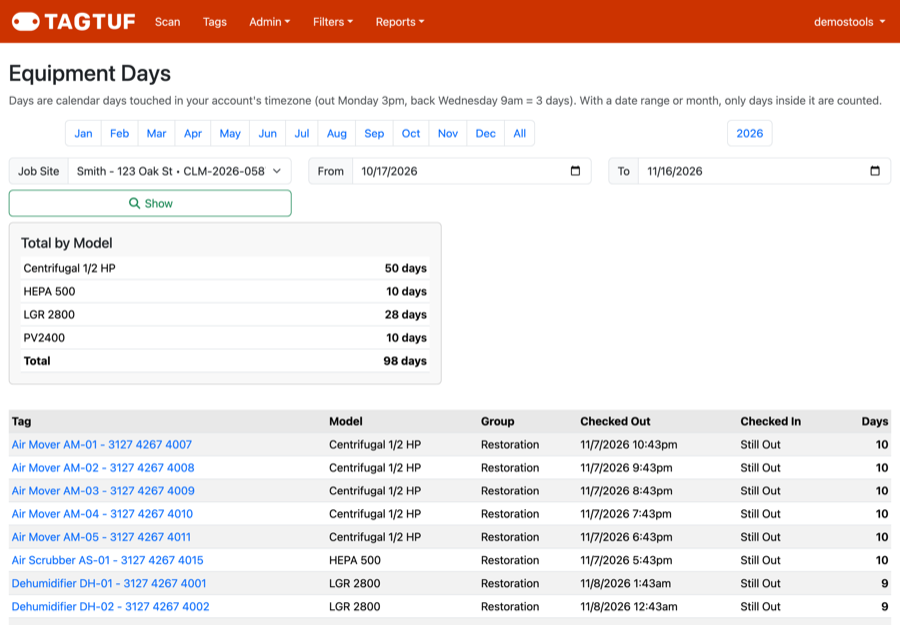
Equipment Days for one job site
How Days Are Counted
Days are calendar days touched, in your account's time zone: out Monday at 3pm and back Wednesday at 9am is 3 days.
A stay starts when the unit is checked out to the site. It ends when it's checked in, marked Missing, or checked out to a different site. With a date range or month, only the days inside it are counted.
A stay starts when the unit is checked out to the site. It ends when it's checked in, marked Missing, or checked out to a different site. With a date range or month, only the days inside it are counted.
Export It
Tap Export to CSV to download the report as a spreadsheet for your invoice or your records.
Comments
No Comments Yet