Your Public Tag Page: Contact Info and Custom Links
Anyone can scan your tags. Without a PIN, they see your public tag page: your contact information, so lost equipment can find its way home. You can also send scans to your own web page.
Your Contact Information
1. Open the menu under your username and go to Account Settings.
2. Under Public Contact Info, write a short Message (for example "Found this equipment? Please call or email us so we can pick it up.") and enter your Contact Email, Contact Phone and Contact Website.
3. Tap Save.
These show on every tag's public page, under the PIN box.
2. Under Public Contact Info, write a short Message (for example "Found this equipment? Please call or email us so we can pick it up.") and enter your Contact Email, Contact Phone and Contact Website.
3. Tap Save.
These show on every tag's public page, under the PIN box.
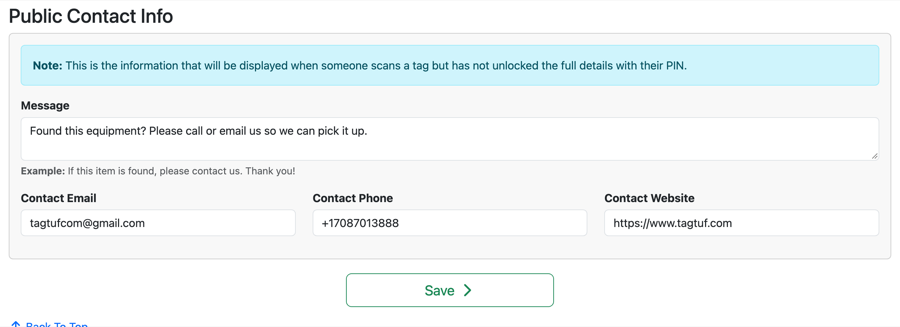
Account Settings > Public Contact Info
What People See
The tag's name and number, your contact information, the PIN box, and the last service date if you turned that on. Everything else stays behind the PIN.
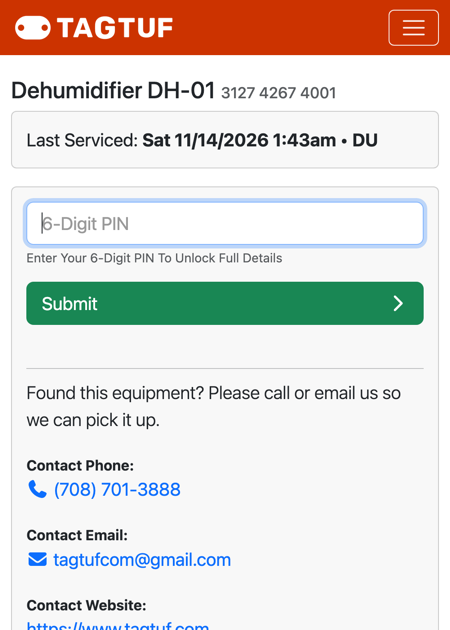
A public tag page
Sending Scans to Your Own Page
If you'd rather send people to your own web page, enter a custom QR code URL:
For every tag: Account Settings > Global Custom QR Code URL.
For one tag: its edit page in Tag Manager > Tag-Specific Custom QR Code URL.
The tag's own link wins over the account's, and the account's wins over TagTuf's built-in page. Put {tag_id} in the URL where you want the scanned tag number. Leave both blank to use TagTuf's tracking (needed for scanning with a PIN).
For every tag: Account Settings > Global Custom QR Code URL.
For one tag: its edit page in Tag Manager > Tag-Specific Custom QR Code URL.
The tag's own link wins over the account's, and the account's wins over TagTuf's built-in page. Put {tag_id} in the URL where you want the scanned tag number. Leave both blank to use TagTuf's tracking (needed for scanning with a PIN).
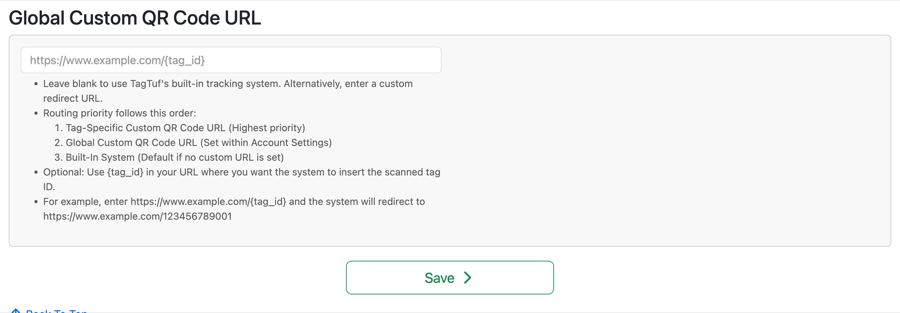
Global Custom QR Code URL
Comments
No Comments Yet